What are Invoices?
- Invoices allow merchants to collect digital payments through the HubSpot payments tool, or to track payments made outside of HubSpot, allowing them to speed up their sales process and reduce the risk of human error. You can find our KB documentation here, and the invoices quick-start guide here.
Features of Invoices
- Invoices can be created from Contacts, Companies, Deals, or Quotes (and will pull in associated object information)
- To create HubSpot invoices, portals will need a Starter, Professional, or Enterprise account with the payments tool set up
- Features are available in all accounts that use the Quickbooks integration.
-
HubSpot invoices are payable via HubSpot payments (both ACH and Credit Card), but can also be marked as paid manually if payment is received outside of HubSpot Payments (e.g. wire transfer, check, PayPal, etc).
NOTE: HubSpot Invoices is automatically available to all customers who are approved for HubSpot Payments. If a customer would like to use HubSpot Invoices, all they need to do is be approved for HS Payments.
Invoice details
Getting Invoice details
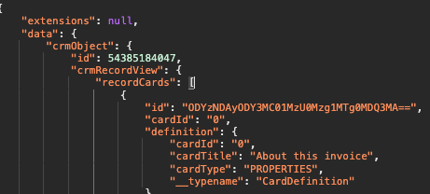
Details of an Invoice can be seen by using this endpoint. However, the ID of an invoice doesn't show within the UI - we need to utilize the network tab in order to get the ID of an invoice to get further details. The easiest way to do this is by taking the following steps;
- Navigate to Invoices and open the network tab
- Search for the number of the invoice you're looking for details of, for example, INV-1013, and then select 'preview' to open the invoice sidebar
- Look in the network tab for requests made to app.hubspot.com/api/graphql/crm as the CRM object ID is the invoice ID. In the screenshot below, the invoice ID is 54385184047:
Invoice Status
We can use invoice details to determine how an invoice was paid. For example, a customer might think a payment was made via an invoice but it was actually marked as paid manually. The hs_invoice_status field will show as PAID if there is any recorded payment and the 'source' will let us know how the payment was recorded.
Invoice creation
Invoices can be created in a few different ways:
- Manually from the invoice index page, as outlined in the KB.
- Converted from a quote also outlined in the above KB.
- Automatically generated from a subscription payment as outlined here.
You can use the invoice details to see how an invoice was created.
Manual creation or converted from quote:
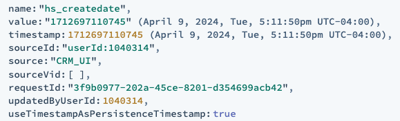
The hs_createdate field will show the sourceId of the user who created the invoice:
Automatically created from subscription payment:
The hs_createdate field will show the source of 'payments:'

Custom Invoice Fields
Accounts that have set up HubSpot payments or Stripe payment processing can use up to 4 custom invoice properties within invoices. The full steps & process for using custom invoice properties is outlined here on the KB. If 4 custom invoices have been added, no more can be added.
Invoice Payments
How does Invoice work with payments?
Customers can accept payments from an invoice if they have set up payments using HubSpot as their payments processor (KB) or their own Stripe account (KB). Depending on what processor a customer is using will impact how they can set up invoices.
If a merchant is using HubSpot as their payment processor they will only be able to create the invoice in USD currency as this only currency supported at this time. If they are using their own Stripe account, they will be able to create the invoice in any of the currencies outlined in the above KB.
Invoices can also be created without having any payment method selected. This is a great option for customers that collect payments outside of HubSpot such as by receiving a physical check or through an external integration. Only payments that have been made through HubSpot or through Stripe as a payment processor can be refunded.
Invoice payment options
We can see what payment option was set up for an invoice by using the Invoice details endpoint linked above and looking at the hs_allowed_payment_methods field. The table below breaks down the values you might see & what they mean!
This is helpful if a customer is expecting for an ACH payment but received a credit card payment or vice versa.
Manually associating Payment to an Invoice
Customers can manually associate an existing payment to an invoice, more information in this KB for reference. However, there are certain payments that cannot be associated with invoices based on the following criteria:
- The payment must have the same currencyCode as the invoice
- hs_latest_status on the payment must be
succeeded - hs_payment_source_app cannot equal
INVOICE - the payment must have no associations to any other invoice
You can verify if a payment meets the criteria above by using the Payment object ID to look at the payment information using this endpoint. Getting the payment object ID by utilizing associations endpoints, more information outlined in the Payments IKB!
Manage Invoices
Invoices can be edited after being finalized if the following is true:
- The setting to edit open invoices is turned on. This is found in Settings > Objects > Invoices
- The user is a Super Admin or a user with edit permission for invoices setting enabled.
- A payment has not been made on the invoice
- If a payment has been manually recorded on the invoice, the payment can be deleted & then the invoice can be edited.
It's important to note that if an invoice is open & waiting for payment, if it is edited, saving the edited invoice will cancel an open checkout.
Invoices FAQs
What’s the difference between all of these Invoices? (Stripe, QBO, HubSpot)
When a customer says they're using an invoice, it's important to clarify, or #trustbutverify, what kind of invoice they're using, as this will guide your troubleshooting.
Here are some ways you can confirm:
- If the invoice appears on the 'Integration Invoices' CRM Card, then this means the invoice is from a strategic integration (e.g. Quickbooks, Xero), and is owned by the Integrations team (e.g. INT)
- If the invoice appears on the 'Invoices' CRM Card, then this means the invoice is a native invoice, generated in HubSpot. These would be owned by the Commerce team (e.g. CPQ)
Any invoice that gets into the system not as part of the QBO or Xero integrations OR by being created by HubSpot will not show up in associated CRM cards. Data Sync: Invoice Sync
Time Zones & Invoices created by Subscriptions
When invoices are automatically generated from a subscription, customers may see the due date of an invoice be a day later than expected. This is working as expected as invoice dates do not reflect the portal's time zone. Issue #26725 outlines how this works:
All invoices that are generated from the billing editor anchor towards EOD GMT and thus the customer sees the respective dates as they do in the portal. We do this as some of our subscription date properties like start date and next payment due date do the same.
For example if an invoice were to be created today from the editor it would output:
1733183999999 (December 2, 2024 11:59:59 PM GMT) which in turn for the customer would be December 3, 2024 00:59:59 PM CET.
Issue Requirements
If after going through the above questions and all of the troubleshooting steps outlined here you're still stuck, then please file a ISSUE with the following information:
- Link to example Invoice: (Invoice itself, not Invoice library)
- Link to example associated record:
- User experiencing issue:
- Support Toolbox link of user:
- HAR file: if applicable